How to Play
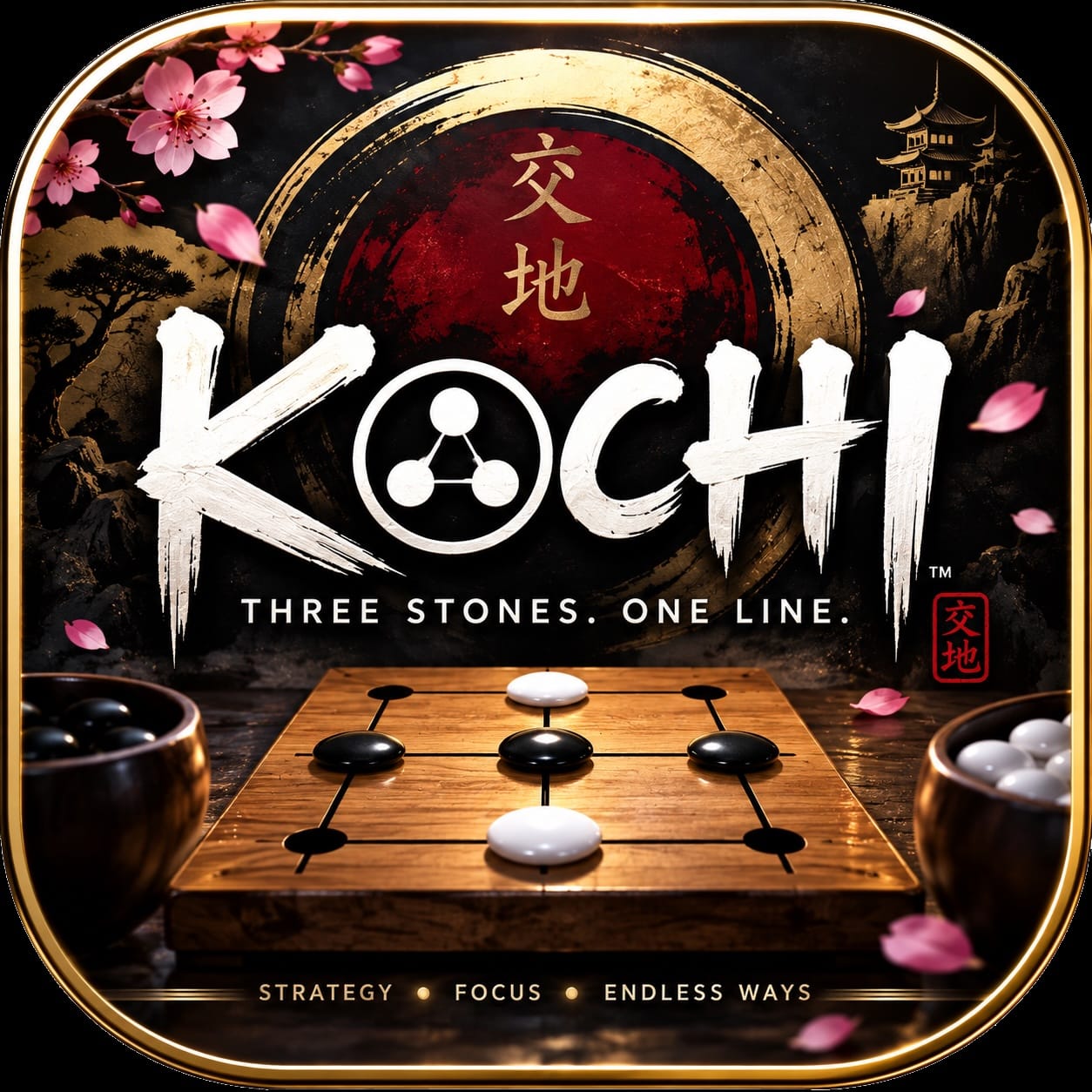
Each player controls three pieces on a nine-point board.
- Players first take turns placing their three pieces on empty points.
- Once all six pieces are placed, the movement phase begins.
- Move one of your pieces to an adjacent empty point along exactly one drawn connection.
- Pieces cannot jump or travel across more than one connection in a turn.
- Form a horizontal, vertical or diagonal line with all three of your pieces to win, during placement or movement.
AI Rivals & Journey
KOCHI includes personality-driven AI rivals with different approaches to the board.
Playing AI matches builds your journey and opens additional challenges as you progress.
If an opponent or challenge is locked, check the requirement shown in the Journey screen.
Some content is meant to be discovered through continued play.
Local Two-Player
Pass & Play lets two people play KOCHI locally on the same device. Players take turns
placing and moving their pieces using the same standard KOCHI rules.
No online connection is required for a local Pass & Play match.
Online Play & Rankings
Play 1 vs 1 using the same nine-point rules. Casual matches are untimed. Ranked matches give each player 60 seconds for the whole match; your clock continues on your turn if you disconnect, and running out of time loses the match.
Only ranked results change your rating. Compare world, country and friends rankings. Rematches are casual, require both players to accept, and swap colours.
Each player needs a separate KOCHI account. Two devices signed into the same account cannot play against each other, even if the displayed names look different. Separate accounts can use the same display name.
If a match does not connect, check your internet connection and which account each device is using.
Themes, Pieces & Customization
KOCHI includes unlockable backgrounds, boards, playing pieces, line styles and profile
avatars. Use the Collection area to view available items and see what is still locked.
Unlock requirements are displayed in the game so you can see what to work toward next.
Remove Ads & Restore Purchases
Remove Ads is a one-time purchase that removes automatic ads. It is not a subscription. Optional videos for bonus XP remain available if you choose to watch them.
On iOS, open Remove Ads on the home screen to see your local price and buy. To recover an existing purchase, choose Restore Purchases on that screen, or open Settings → Purchases → Restore Purchases.
On iOS, use the same Apple Account that bought Remove Ads. On Android, open Help & settings → Refresh Google Play ownership / restore, using the same Google Play account that bought Remove Ads. The Android purchase button is also in Help & settings. Purchases are separate between Apple and Google Play. A KOCHI account is not required to restore it. If the price is unavailable, check your connection and try again later. For purchase help, contact support; do not send payment-card details or passwords.
Sign In & Play on Another Device
KOCHI on iPhone supports Apple, Google, and email with a password. Android currently supports Google and email. On another device, open your existing KOCHI account using a method already connected to it. To use an Apple-created account on Android, first connect Google or email to that same account on iPhone. Google or email sign-in does not require changing the phone's Apple Account.
To keep your existing KOCHI identity, connect a sign-in method from your current profile. Creating a separate account does not automatically merge progress or rankings. Use the email password-reset option if you forget your KOCHI password.
Save & Restore Your Journey
On iOS, open Online → Profile and find Journey backup. Save this phone's journey to keep its progress in the cloud, or use the cloud journey to restore an existing backup. Check the displayed XP and games before choosing which journey to keep.
Use Sync journey to sync your progress while signed in. On another device, sign in to the same KOCHI account to access that backup. On Android, choose Check cloud journey, compare the saved progress, then choose Use cloud journey to bring it onto the device. Save this device’s journey uploads the Android device’s progress. An unfinished local match stays on the original device.
Delete Your KOCHI Account
On iOS, open Online → Profile → Account settings → Delete account and follow the confirmation steps. You may need to sign in again to confirm ownership.
Deletion removes your online profile, rating, friends and cloud journey. Shared match records are retained with your account identifier replaced. Local progress on your phone is separate. Deleting a KOCHI account does not cancel or refund an Apple or Google Play purchase.
On Android, open Online & account → Account & saved journey → Delete online account. Follow the confirmation steps: email-only accounts confirm with their KOCHI password; Google-linked accounts confirm with Google; Apple-linked accounts confirm with Apple. Use the same provider account already connected to your KOCHI profile. If you cannot access your account or complete confirmation, email contact@onetmediagroup.ca with the subject “KOCHI Account Deletion” and the account email. We will verify ownership before processing your request. Do not send passwords. See the privacy policy for retention details.
Rewarded Ads
Rewarded ads are optional. When an eligible reward is offered, you can choose to watch
an ad for the displayed bonus or continue playing normally without it.
If an ad does not load, check your internet connection and try again later. Ad availability
can vary by region, device and network conditions.
Sound & Character Audio
KOCHI uses character dialogue and game audio during play. Check the in-game settings
if you want to adjust available audio options.
If audio unexpectedly stops, confirm your device volume and audio settings, then fully
close and reopen KOCHI.
Progress or Unlock Not Updating
First return to the main game screen and reopen the Journey or Collection area. If the
displayed progress still has not updated, fully close KOCHI and launch it again.
When contacting support about missing progress, include the challenge or item name and
what happened immediately before the issue appeared.
Troubleshooting
If KOCHI is not behaving as expected, try these basic steps first:
- Fully close and reopen the app.
- Confirm your device is running a supported version of iOS or Android.
- Check your internet connection for features that require online access.
- Install the latest KOCHI update when one is available.
Report a Problem
When reporting a problem, including a few details helps us reproduce it faster:
- Your phone or tablet model.
- Your iOS or Android version.
- Your KOCHI app version.
- What you were doing when the problem occurred.
- A screenshot, if it helps show the issue.
Privacy
Read how KOCHI handles account information, online play, cloud progress, advertising and purchases on the official privacy page.
View the KOCHI Privacy Policy →